layout: true <nav> <span>Web integration and best practices with CSS by <strong>Manon Carbonnel</strong></span> <span style="float: right">2020</span> </nav> --- class: cover .highlight[] # Web integration .subtitle[Best practices in CSS: organize the association HTML 5 and CSS 3 the clean way] .line[] .image-center[  ] --- class: content .highlight[] ## Some reminders .line[] The HTML language allows you to build the **structure** of a template. The CSS *Cascading Style Sheets* language focuses on **styling** these elements. .line[] .image-center[ 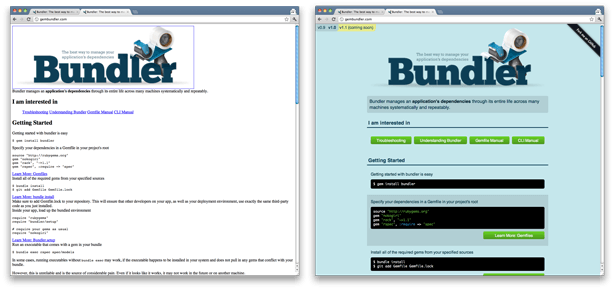 ] --- class: content .highlight[] ## Priorities .subtitle[Cascading concept] .line[] .col[ The closer the CSS code is to the HTML tag, the more it has priority. 1. Style attribute ```html <p style=""></p> ``` 2. Style tag ```html <style> /* code */ </style> ``` 3. In a .css file loaded via the link tag in the head ```html <head> <link rel="stylesheet" href="style.css" /> </head> ``` ] --- class: content .highlight[] ## Priorities .subtitle[Cascading concept] .line[] .col[ The closer the CSS code is to the HTML tag, the more it has priority. 1. Style attribute ```html <p style=""></p> ``` 2. Style tag ```html <style> /* code */ </style> ``` 3. In a .css file loaded via the link tag in the head ```html <head> <link rel="stylesheet" href="style.css" /> </head> ``` ] .col[ The code loaded last takes priority. The id has the highest priority level, then it's the class and then the tag. .col[ ```css p { color: red; } p { color: blue; } p.text-muted { color: grey; } p#id { color: black; } ``` ] .col[ ```css p { color: red; } p { color: blue; } .text-muted { color: grey; } #id { color: black; } ``` ] ] --- class: content .highlight[] ## Basic selectors .subtitle[Browsing the DOM] .line[] .col[ An element containing two classes ```css .class1.class2 { } .class1&.class2 { } ``` One element contained in another ```css .elem1 .elem2 { } ``` Direct children (only) of an element ```css .class1 > .class2 { } ``` ] .col[ Element according to state ```css a:hover { } input[type=radio]:checked { } ``` ] --- class: content .highlight[] ## Advanced selectors .subtitle[Browsing the DOM] .line[] The adjacent selector to act on the next element ```css .class1 + .class2 { } .class1 ~ .class2 { } ``` Elements not having a specific class ```css .class1:not(class2) { } ``` Target an element using its index ```css li:first-child { } li:nth-child(3) { } li:nth-child(3n) { } li:nth-last-of-type(3n) { } ``` --- class: content .highlight[] ## Basic positioning .subtitle[Positioning and floating] .line[] .col[ There are 3 types of positioning: * relative * absolute * fixed .line[] ```css .parent { position: relative; } .child { position: absolute; top: 10px; left: 50px; } ``` ] .col[ A tag in **position: absolute** refers to the **first parent** having a **position: relative** If no parent is specified, the tag in absolute position will refer to the *html* tag It is always placed, by default, at 0 pixels at the top left of the parent ] --- class: content .highlight[] ## Advanced positioning with Flex .subtitle[Properties for the parent] .line[] .col[ ```css .container { display: flex; /* ou inline-flex */ flex-direction: row; flex-wrap: nowrap; /* ou wrap | wrap-reverse */ } ``` .line[] Flex directions: * **row** (default) : left to right * **column** : top to bottom Also exist in reverse: **row-reverse** & **column-reverse** Flex wrap : by default all the elements pass on a line ] .col[ .text-center[ justify-content ] .image-max-height[ 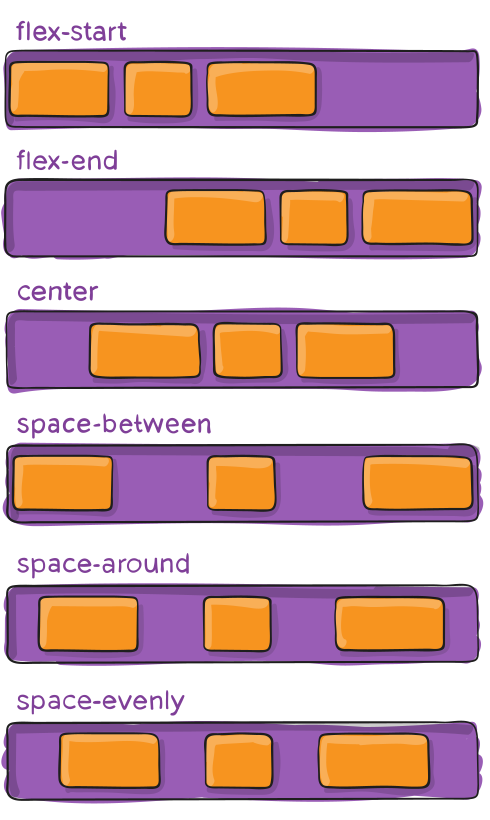 ] ] --- class: content .highlight[] ## Advanced positioning with Flex .subtitle[Properties for the parent] .line[] .col[ .text-center[ align-items ] .image-max-height[ 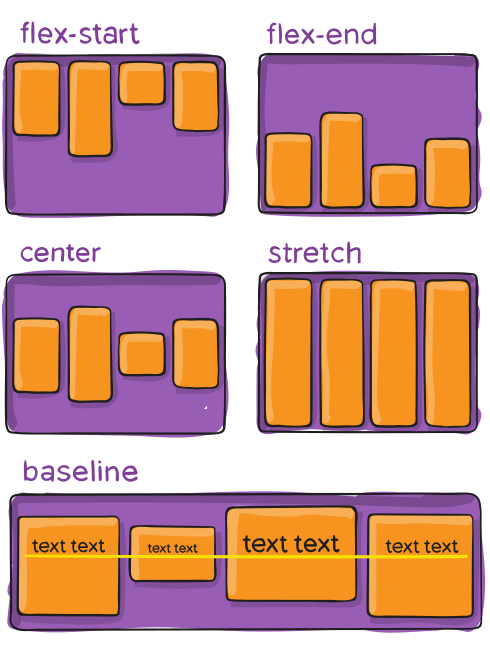 ] ] .col[ .text-center[ align-content ] .image-max-height[ 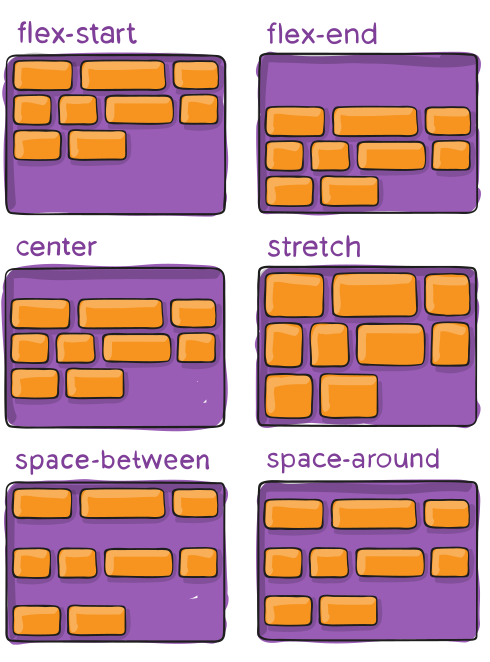 ] ] --- class: content .highlight[] ## Advanced positioning with Flex .subtitle[Properties for the children] .line[] .col[ ```css .item { flex-grow: <number>; /* default 0 */ flex-shrink: <number>; /* default 1 */ flex-basis: <length> | auto; /* default auto */ flex: 0 1 auto; /* all combined */ } ``` .image-resize[ 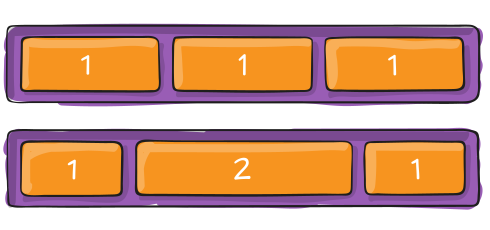 ] ] --- class: content .highlight[] ## Advanced positioning with Flex .subtitle[Properties for the children] .line[] .col[ ```css .item { flex-grow: <number>; /* default 0 */ flex-shrink: <number>; /* default 1 */ flex-basis: <length> | auto; /* default auto */ flex: 0 1 auto; /* all combined */ } ``` .image-resize[  ] ] .col[ ```css .item { align-self: flex-start; } ``` align-self: auto | flex-start | flex-end | center | baseline | stretch; .image-resize[ 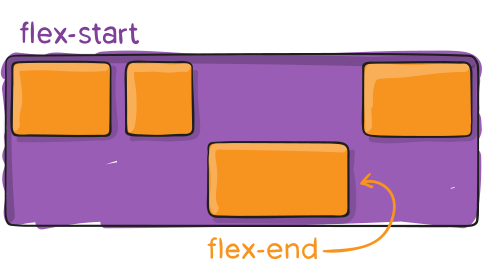 ] ] --- class: content .highlight[] ## Sizes .subtitle[px, rem, vh, % ???] .line[] * **px** : Pixel * **%** : Percentage * **vh** : "Viewport height" - 1vh = 1% of the window height * **vw** : "Viewport width" - 1vw = 1% of the window width * **em** : Size proportional to that of the parent of the current element * **rem** : "Root em" size proportional to that of the root element of the document (*html* tag) .line[] *Unlike the values in em, the value in rem is constant throughout the document.* --- class: content .highlight[] ## Margins .subtitle[Interior and outer margins] .line[] * Margin : outer margins * Padding : interior margins .image-right[  ] --- class: content .highlight[] ## Pseudo .subtitle[Classes & elements] .line[] .col[ ```css elem:hover, elem:active { color: grey; } ui li:first-child { background-color: grey; } ``` ```css p::first-line { color: blue; } ``` .image-resize[ 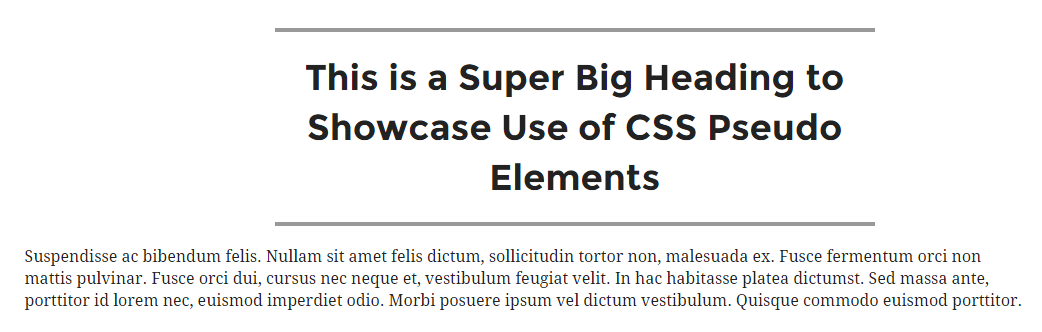 ] ] .col[ .image-max-height[  ] ] --- class: content .highlight[] ## Title levels .line[] .image-right[ 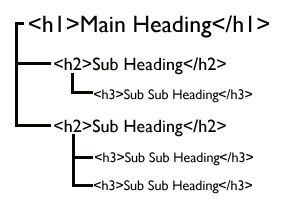 ] Title type tags are there to declare the type of an item. They promote natural referencing. Organization: * Only one h1 * 2 or 3 h2 * n h3 * n h4 * ... --- class: content .highlight[] ## Transitions .line[] CSS transitions allows you to change property values smoothly, over a given duration. .col[ Here are the available rules for CSS transitions: - transition - transition-delay - transition-duration - transition-property - transition-timing-function ] .col[ .col[ Example: ```html <div></div> ``` ```css div { width: 100px; height: 100px; transition-property: width; transition-duration: 2s; transition-timing-function: linear; transition-delay: 1s; /* or */ transition: width 2s linear 1s; } div:hover { width: 300px; } ``` ] ] --- class: content .highlight[] ## Animations .line[] CSS allows animation of HTML elements gradually change from one style to another, without using JavaScript. You can change as many CSS properties you want, as many times you want. To use CSS animation, you must first specify some **keyframes** for the animation. Keyframes hold what styles the element will have at certain times. .col[ Here are the available rules for CSS animations: - @keyframes - animation - animation-name - animation-duration - animation-delay - animation-iteration-count - animation-direction - animation-timing-function - animation-fill-mode ] .col[ .col[ Example: ```html <div></div> ``` ] .col[ ```css div { background-color: red; animation-name: example; animation-duration: 4s; } @keyframes example { from { background-color: red; } to { background-color: yellow; } /* or */ 0% { background-color: red; } 25% { background-color: yellow; } 50% { background-color: blue; } 100% { background-color: green; } } ``` ] ] --- class: content .highlight[] ## Animations .line[] CSS allows animation of HTML elements gradually change from one style to another, without using JavaScript. You can change as many CSS properties you want, as many times you want. To use CSS animation, you must first specify some **keyframes** for the animation. Keyframes hold what styles the element will have at certain times. .col[ Here are the available rules for CSS animations: - @keyframes - animation - animation-name - animation-duration - animation-delay - animation-iteration-count - animation-direction - animation-timing-function - animation-fill-mode ] .col[ Other example: ```html <div></div> ``` ```css div { animation-name: example; animation-duration: 5s; animation-timing-function: linear; animation-delay: 2s; animation-iteration-count: infinite; animation-direction: alternate; /* or */ animation: example 5s linear 2s infinite alternate; } ``` ] --- class: content .highlight[] ## Parallax .line[] **Parallax** scrolling is an effect where the background content (i.e. an image) is moved at a different speed than the foreground content while scrolling. The effect can be vertical and/or horizontal, but let's focus on the vertical (the most used one), which requires CSS only. See a [demo with parallax scrolling](https://www.w3schools.com/howto/tryhow_css_parallax_demo.htm) and a [demo without it](https://www.w3schools.com/howto/tryhow_css_parallax_demo_none.htm). You can create mind blowing parallax effects using additionnal JavaScript libraries. .col[ ```html <body> <div class="block"></div> <div class="parallax"></div> <div class="block"></div> </body> ``` ] .col[ ```css p { height:500px; } .parallax { /* The image used */ background-image: url("my_image.jpg"); /* Set a specific height */ min-height: 500px; /* Create the parallax scrolling effect */ background-attachment: fixed; background-position: center; background-repeat: no-repeat; background-size: cover; } ``` ] --- class: content .highlight[] ## Responsive design .line[] Responsive web design makes your web page look good on all devices, whether from a computer, a tablet or a smartphone. Responsive web design uses only HTML and CSS using **media queries**. Most frontend framework now use a grid system with standard device widths called **breakpoints** for you to specify your CSS rules. .col[ ```html <head> <!-- Give the browser instructions about the page's dimensions and scaling. --> <meta name="viewport" content="width=device-width, initial-scale=1.0"> </head> ``` ] .col[ ```css /* Bootstrap frontend framework breakpoints */ /* Extra small devices (portrait phones) */ /* code */ /* Small devices (landscape phones) */ @media screen and (min-width: 768px) { /* code */ } /* Medium devices (tablets) */ @media screen and (min-width: 992px) { /* code */ } /* Large devices (desktops) */ @media screen and (min-width: 1200px) { /* code */ } /* Extra large devices (large desktops) */ @media screen and (min-width: 1200px) { /* code */ } ``` ``` ] --- class: content .highlight[] ## Best practices .line[] .image-center[  ] --- class: content .highlight[] ## Structure .subtitle[Respect the HTML5 hierarchy] .line[] .image-right[ 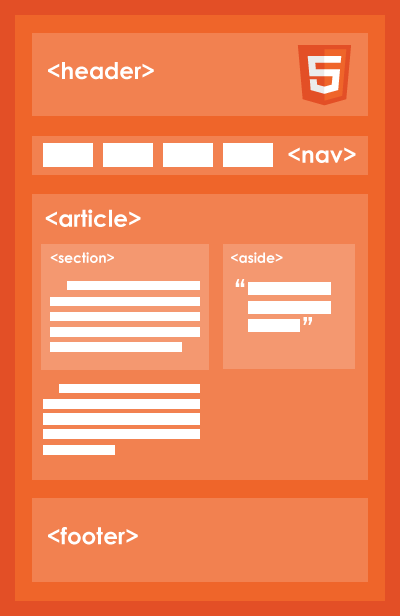 ] .small[Especially when using a frontend framework.] .line[] A *div* is a container, **block element** *display: block;* A *p* paragraph is a **block element** for text *display: block;* A *span* is a **inline container** *display: inline;* --- class: content .highlight[] ## Avoiding div soup .line[] .image-center[ 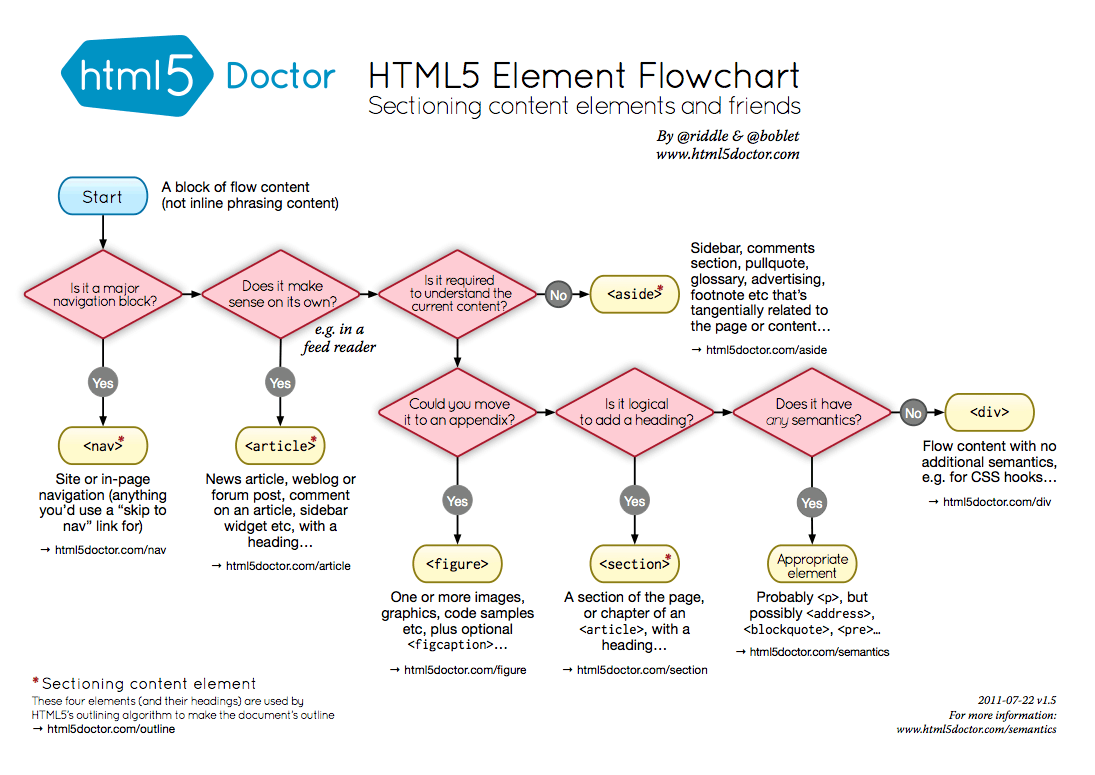 ] --- class: content .highlight[] ## Naming .subtitle[Use an explicit convention] .line[] .image-right[ 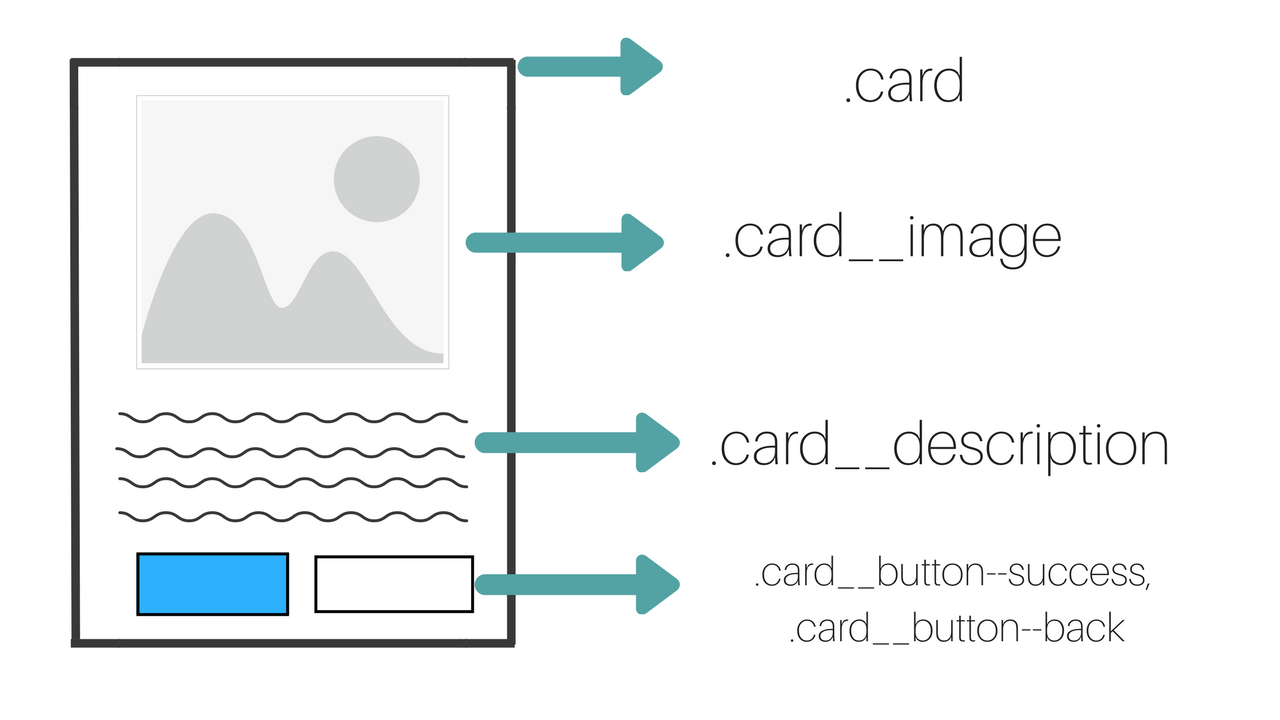 ] For example, the *BEM* methodology: ```css .block__element--modifier { /* code */ } ``` .line[] **Why ?** * Modularity * Re-usability * Structure --- class: content .highlight[] ## Think mobile first .subtitle[Optimize your responsive design] .line[] Because most users consult websites via their smartphone. Start your design with the smartphone template and style, and work your way up to large devices. --- class: content .highlight[] ## Bad practices .subtitle[] .line[] .image-center[  ] --- class: content .highlight[] ## Mix roles .subtitle[Use html tags for styling] .line[] For example, to make an element stand out: ```html <h2>My text</h2> ``` instead of: ```html <strong>My text</strong> or <span class="text-strong">My text</span> ``` .line[] **Why ?** HTML is a declarative language that must be structured and consistent. It is not designed for styling. A consistent HTML structure is essential for good SEO. --- class: content .highlight[] ## Naming .subtitle[Multiply css classes] .line[] For example : ```html <p class="text-blue text-center padding-15">My text</p> ``` because it's almost like putting the CSS in the HTML file: ```html <p style="color: blue; text-align: center; padding: 15px;">My text</p> ``` .line[] **Why ?** What we want is to save time and not search everywhere to make our modifications. So all the styling must be located in the same place: separate CSS files. --- class: content .highlight[] ## Forced overload .subtitle[Put !important everywhere] .line[] For example: ```css .link { color: black !important; } ``` instead of: ```css .navbar .link { color: black; } ``` .line[] **Why ?** Specifying the parent architecture of the component (path) offers overload possibilities. The keyword !important should be used exceptionally. --- class: content .highlight[] ## Bad cutting .subtitle[Put block type tags inside inline type tags] .line[] For example: ```html <span> <img src="#"/> <div>My text</div> </span> ``` instead of: ```html <div> <img src="#"/> <p>My text</p> </div> ``` .line[] **Why ?** The DOM hierarchy must be respected (SEO). To avoid unexpected behavior in CSS. --- class: content .highlight[] ## Advices .line[] .image-center[  ] --- class: content .highlight[] ## Organization .subtitle[Organize around a graphical prototype] .line[] .col[ * Identify what is common to all screens * Visually cut each screen into blocks / grids * Work the style in a modular (component oriented) way * Think *mobile first* for public sites * Add summaries in your stylesheets ] .col[ ```css /* * CONTENTS * * SETTINGS * Global...............Variables and config. * * BASE * Headings.............H1–H6 styles. * * OBJECTS * Wrappers.............Wrapping & constraining elements. * * COMPONENTS * Illustration.........The main illustration. * Form.................The main page form. * * TRUMPS * Buttons..............Button elements. * Icons................Icon elements. */ /*------------------------------------*\ # SETTINGS Global \*------------------------------------*/ ... ``` ] --- class: content .highlight[] ## Split CSS code .subtitle[From the global to the specific] .line[] 1. Identify the **main variables** of the graphic prototype / style guides (colors, fonts, sizes) 2. Create a dedicated file for **recurring elements** (forms, menus, buttons) 3. Create a global CSS file for the **layout** (common components) of the application (variables, header, nav, footer, etc.) 4. Create a dedicated file by **component**, which will include style additions and overloads on the elements --- class: content .highlight[] ## Use a Framework .subtitle[and a dynamic language with a task runner] .line[] .col[ * Use a framework like **Bootstrap**, **Angular Material**, **Vuetify** or **Bulma** ... .line[] .line[] .line[] .image-mini[  ] .image-mini[  ] .image-mini[  ] .image-mini[  ] ] .col[ * Use dynamic language like **SASS** or **LESS** * Use a task runner like **Webpack** or **ViteJS** to *minify* and *uglify* the outputs .line[] .image-mini[  ] .image-mini[  ] .image-mini[  ] .image-mini[  ] ] --- class: content .highlight[] ## Think about code quality .subtitle[use formatters and linters] .line[] .col[ * Use a formatter like **Prettier**, **PostCSS**... .line[] .image-mini[  ] .image-mini[  ] ] .col[ * Use a linter like **Stylelint** .line[] .image-mini[  ] ] --- class: content .highlight[] ## Additional resources .subtitle[for the thirst for knowledge!] .line[] .col[ **FR** * **La Cascade** [https://la-cascade.io/](https://la-cascade.io/) * **Alsa créations** [https://www.alsacreations.com/](https://www.alsacreations.com/tuto/liste/2-css.html) .line[] .image-mini[  ] .image-mini[  ] ] .col[ **EN** * **CSS-Tricks** [https://css-tricks.com/](https://css-tricks.com/) .line[] .line[] .image-mini[  ] ] --- class: content .highlight[] # And There you go ! .subtitle[Now you have all the keys to get the job done o/] .line[] .image-center[  ] --- class: cover .highlight[] # Thanks ! .line[] .line[] .image-center[  ]